[HAI5016] Cache your daily FX rates with GitHub Actions

During class today we moved our get_fx function from the agent development notebook into a standalone script called exchangerates.py. This script fetches the latest exchange rates from an API and updates our Supabase database. That gives us:
- A: a copy of the daily fx rates that we can use as a cache for our agent, and
- B: an extra dataset to run analysis on later.
To receive a daily update of these currency rates without manual intervention, we can use GitHub Actions to schedule this script to run automatically every morning.
In this blog I will guide you on how to make exchangerates.py run automatically every morning using GitHub Actions, while keeping our API keys and database credentials secure by using GitHub Secrets.
Disclaimer: This blog provides instructions and resources for the workshop part of my lectures. It is not a replacement for attending class; it may not include some critical steps and the foundational background of the techniques and methodologies used. The information may become outdated over time as I do not update the instructions after class.
1. Fix your database tables and connection string
Did you catch up during class with the tables? If not, you can delete your tables and recreate them using the SQL commands in the supabase/create_tables.sql file in my repository. This will ensure that you have the correct table structure for storing the exchange rates.
After deleting your table(s), just open the SQL editor in Supabase, copy the contents of the
create_tables.sqlfile, and run it to create the necessary tables.
Get your Supabase connection string
During class we found out that we should use the ‘session pooler’ connection string for our Python-based agent. You can find this connection string in your Supabase database dashboard:
- Go to your Supabase project dashboard
- In the top menu bar click
Connect - Find
connection stringand select theSession pooleroption - Then you’ll find the connection string that looks something like this:
postgresql://postgres.mormewvuazesfhjdkhwqqn:[YOUR-PASSWORD]@aws-5-ap-southeast-10.pooler.supabase.com:5432/postgres - Save it as
SUPABASE_CONNECTION_STRINGin your.envfile for now, and we will add it as a secret in GitHub later.
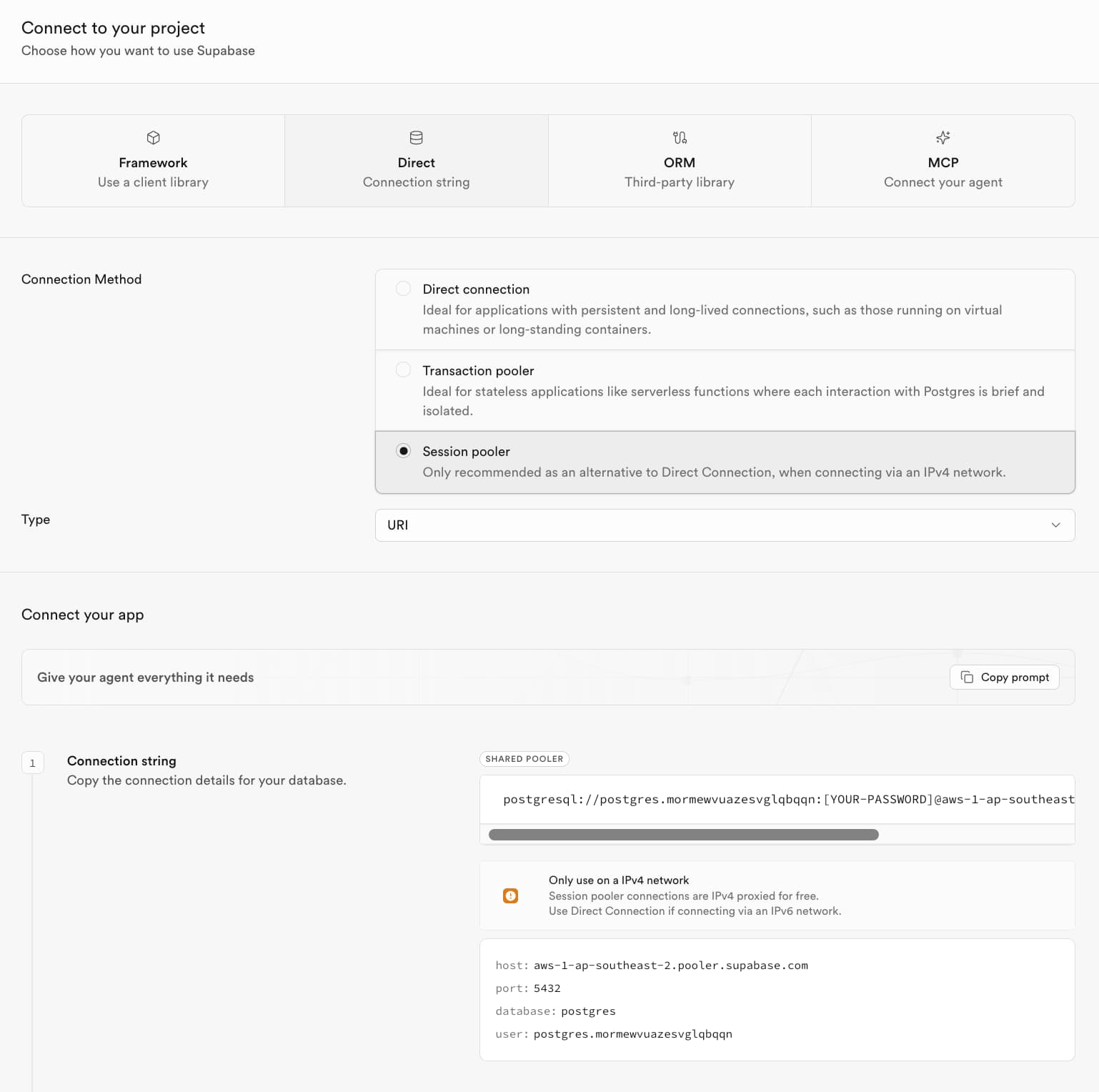 There is your connection string
Make sure to replace
[YOUR-PASSWORD]with the actual password for your Supabase database that you set during the database creation process. Did you forget it? No worries, you can reset it in the Supabase dashboard underDatabase>Settings>Reset database password.
2. Prepare the repository
Make sure that you have a script called exchangerates.py in your repository that looks similar to mine: https://github.com/pimatskku/hai5016-project/blob/master/exchangerates.py
3. Create a GitHub Environment and add your secrets
As mentioned in earlier classes, the .env file in our project contains sensitive information like API keys and database connection strings. One of the reasons that we do not commit this file to our repository is that it is environment-specific. Because we will be running our script in a different environment (GitHub Actions), we need to provide the necessary secrets to this environment in a secure way.
Let’s create an environment in our GitHub repository and add the required secrets for our script. You can find these secrets in your .env file.
- In GitHub, open your repository and go to
Settingsand findEnvironments - Click on ‘New environment’ and name it
dev-prod(or any name you prefer) - In the environment settings, click ‘Add environment secret’ and add the following secrets:
-
Name:
EXCHANGE_RATE_API_KEY, Value: your API key for the exchange rate service -
Name:
SUPABASE_CONNECTION_STRING, Value: your Supabase connection string
-
Name:
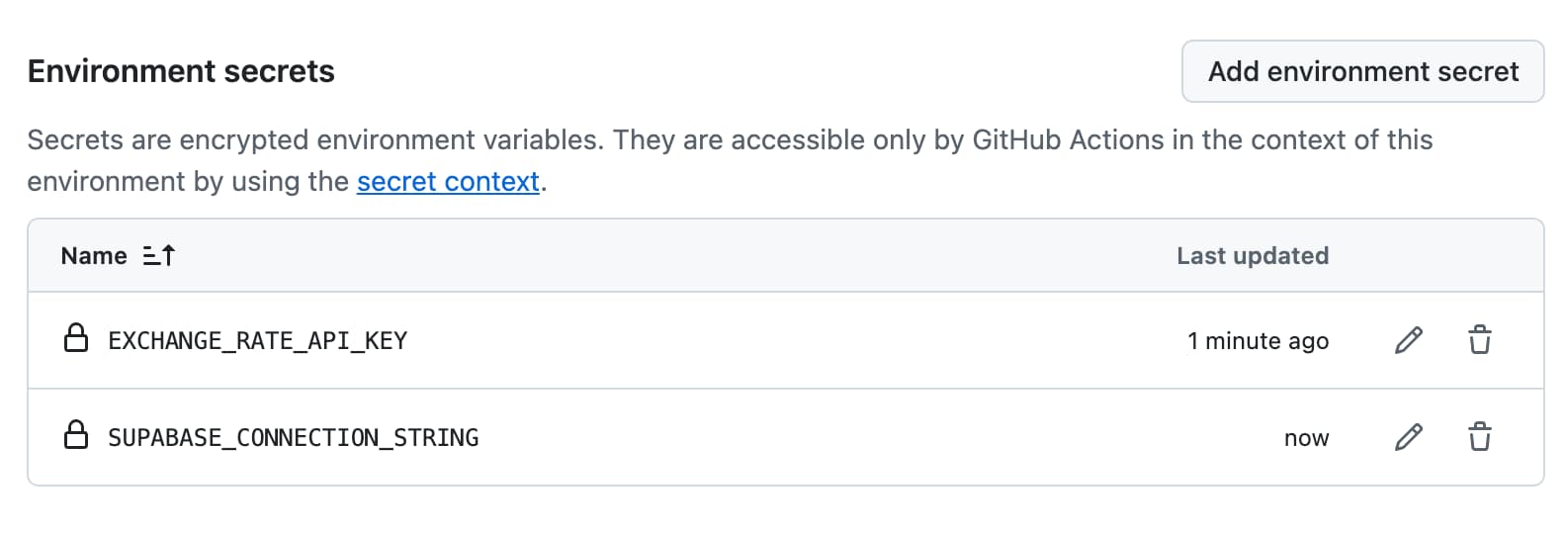 GitHub environment secrets
4. Create the scheduled workflow
Now let’s create a GitHub Actions workflow that will run our exchangerates.py script every morning. This workflow will use the secrets we just added to access the API and update our Supabase database.
- Add the file update-exchange-rates.yml to the
.github/workflows/directory of your repository - Commit and push the changes to GitHub
Then, go back to your repository on GitHub.com and navigate to the Actions tab. You should see your new workflow Update exchange rates listed there.
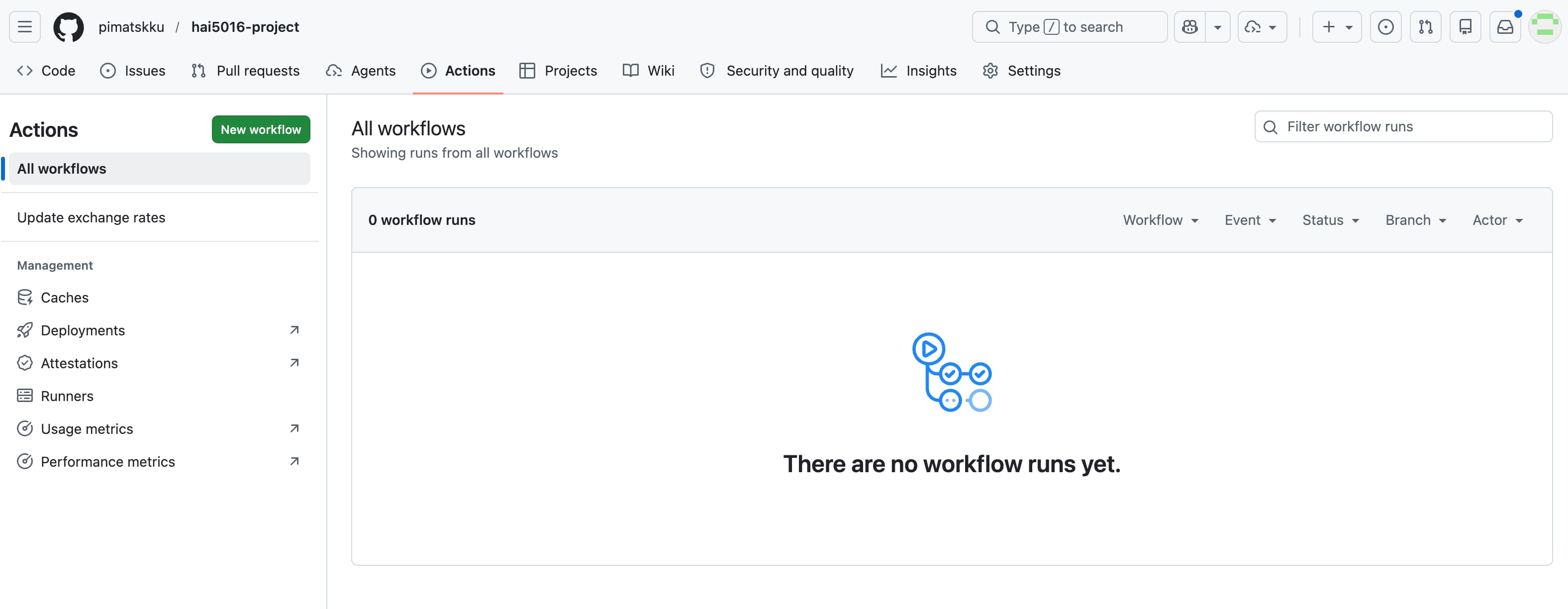 Look at your brand new workflow
Test the workflow
Check if your workflow can run by clicking on the workflow and then clicking the ‘Run workflow’ button (on main branch). This will trigger the workflow to run immediately, allowing you to check if everything is set up correctly before we schedule it to run every morning.
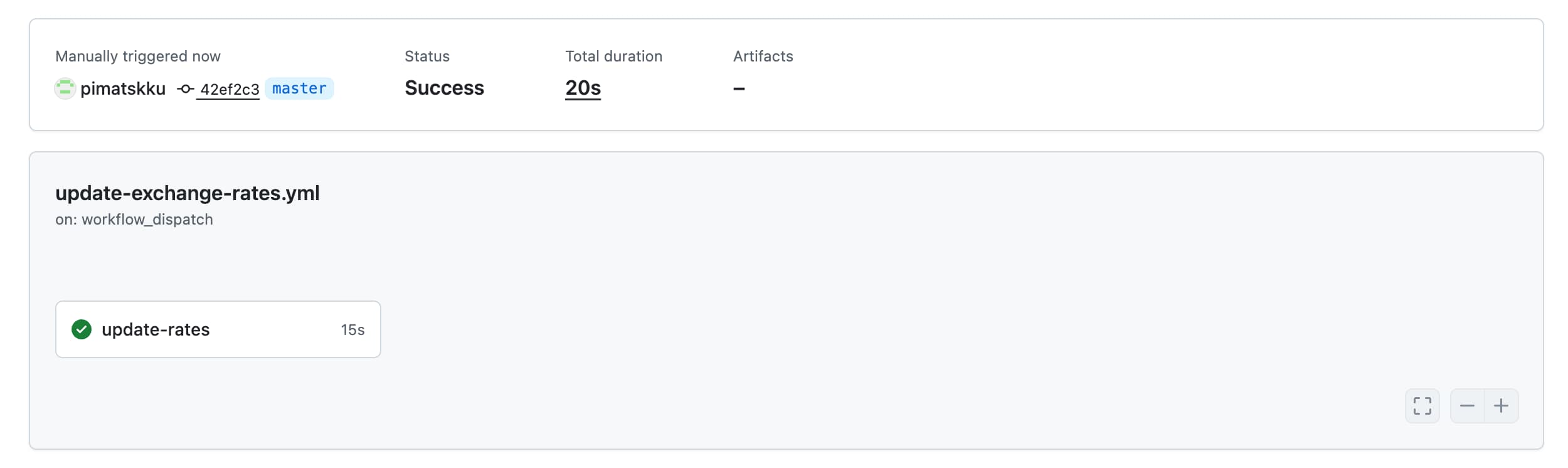 Look at your brand new workflow
Congratulations! If the workflow runs successfully, you should see a green checkmark next to the run in the Actions tab.
5. Validate and monitor
After your workflow has run, you can check if the exchange rates have been updated in your Supabase database. The easiest way to do this is by going to the Supabase dashboard, opening the table editor, and exploring the fx_rates_daily_cache table to see if the latest exchange rates have been inserted.
Alternatively, you can ask GitHub Copilot to use the Supabase MCP server and check the latest FX records in the database.
Scheduled run
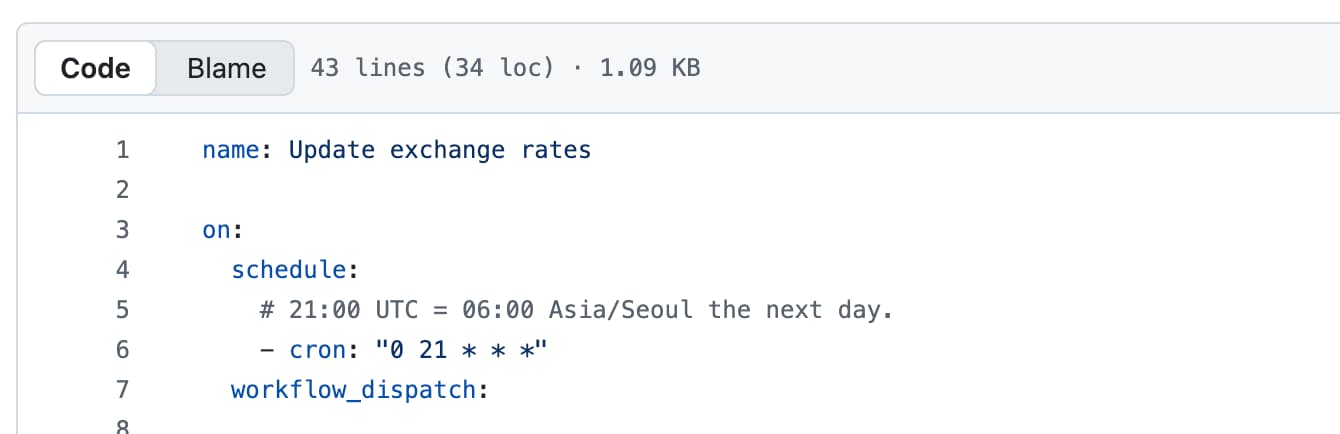 Now that is what a cron looks like.
Because we put a schedule trigger in the code of our workflow, it will run automatically every morning at 6:00 AM (KST). You can check the Actions tab every morning to see if the workflow has run successfully and if the exchange rates have been updated in your database. After a few days, you should have a nice history of daily exchange rates in your database that you can use for your agent or for analysis.
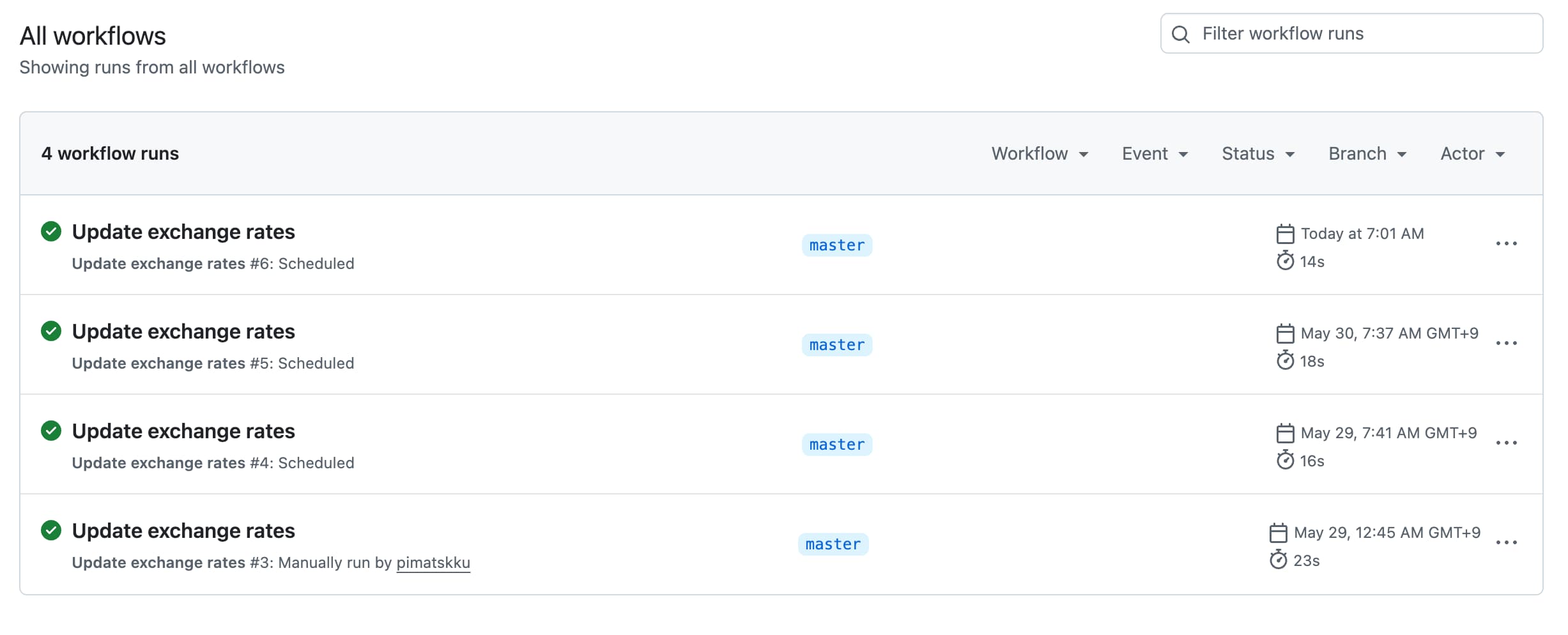 Fresh currency rates in your database every morning.
References
GitHub Actions
Supabase