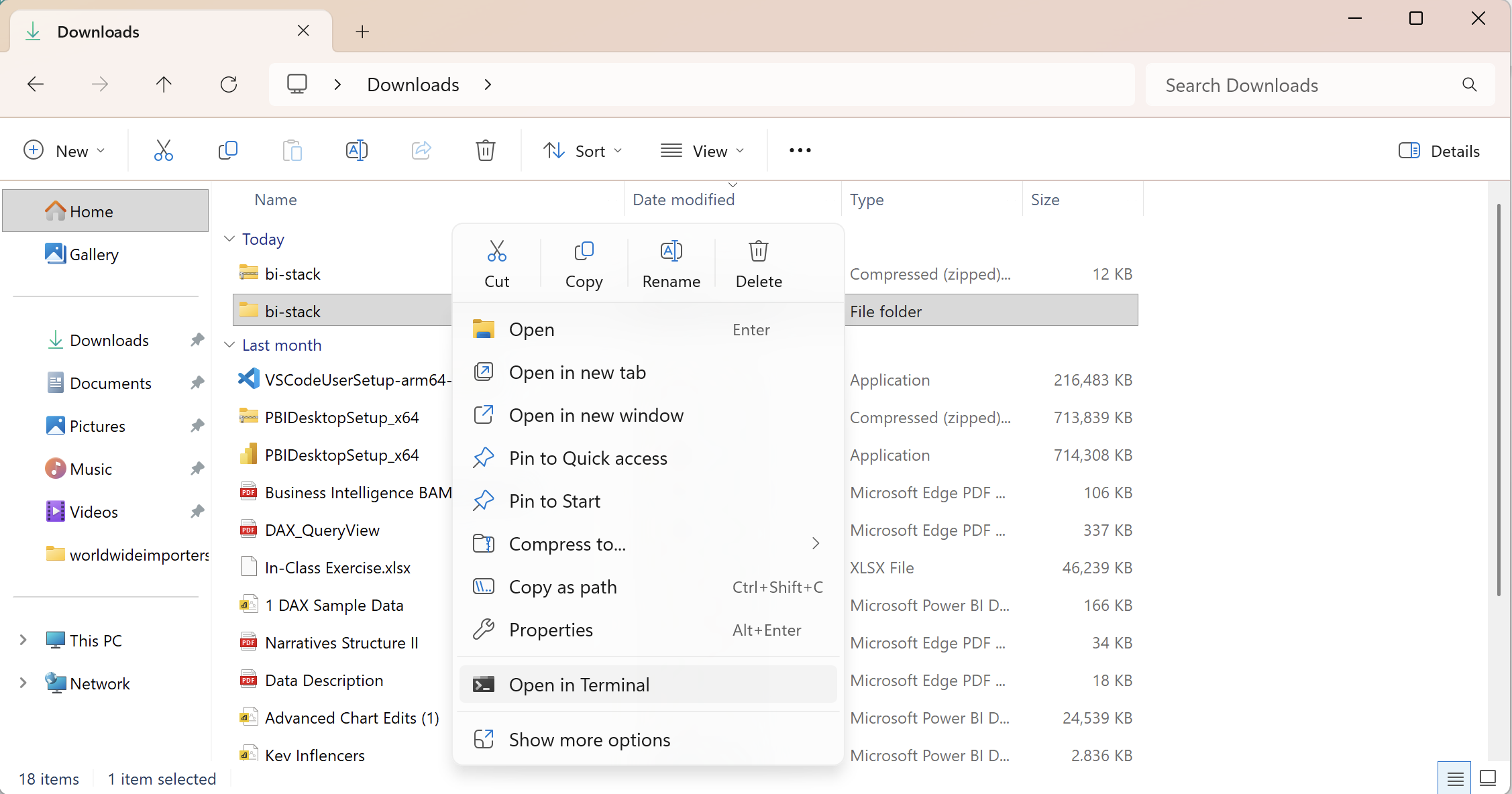
- Right click on the folder where you extracted the IaC files and select “Open in Terminal”
- Alternatively, click on the address bar, type
cmd, and press Enter. This will open a terminal in the current folder.
Let’s take a little break from Power BI. In today’s hands-on session, we’ll use PostgreSQL, CloudBeaver, and Metabase to explore sales data, ask AI business questions, and investigate how shared metrics and definitions affect the answers.
I used my favorite AI buddy, Codex, to prepare the Infrastructure as Code (IaC) files for us. These files describe the services Docker will run on your laptop, so we can start with the same environment.
Disclaimer: This blog provides instructions and resources for the workshop part of my lectures. It is not a replacement for attending class; it may not include some critical steps and the foundational background of the techniques and methodologies used. The information may become outdated over time as I do not update the instructions after class.
You will need Docker Desktop installed, a browser, and access to the materials on iCampus. We will share the usernames and passwords during class. For the AI exercises, have an OpenRouter API key ready; we will cover access and model selection in class. The optional MCP exercise also requires Claude Code or the Codex CLI installed and signed in on your laptop.
| Tool | Role in this session |
|---|---|
| PostgreSQL | Acts like today’s data warehouse and stores our sample sales data |
| CloudBeaver | Lets us inspect database tables and their contents. |
| Metabase | Lets us build questions, metrics, and dashboards, and explore data with AI. |
Before we can spin up our IaC stack, we need to make sure that Docker Desktop is running on your laptop. Open Docker Desktop and wait for it to start. This may take a few minutes, depending on your system.
Check if Docker Desktop is running by looking for the Docker icon in your system tray (Windows) or menu bar (Mac).
On our iCampus course materials under Session 5 you will find a bi-stack.zip file containing the IaC files.
Download this file to your local machine and extract its contents to a convenient location.
Open the folder where you extracted the IaC files in your terminal. One way to do this is
On Windows:
cmd, and press Enter. This will open a terminal in the current folder.
On macOS or Linux:
Right click on the folder and select “Services” -> “New Terminal at Folder” (or similar option depending on your macOS version).
Alternatively, open a terminal and use the cd command to navigate to the folder where you extracted the IaC files
Once you have the correct folder open in your terminal, run the following command to spin up the IaC stack:
1

docker compose up -d
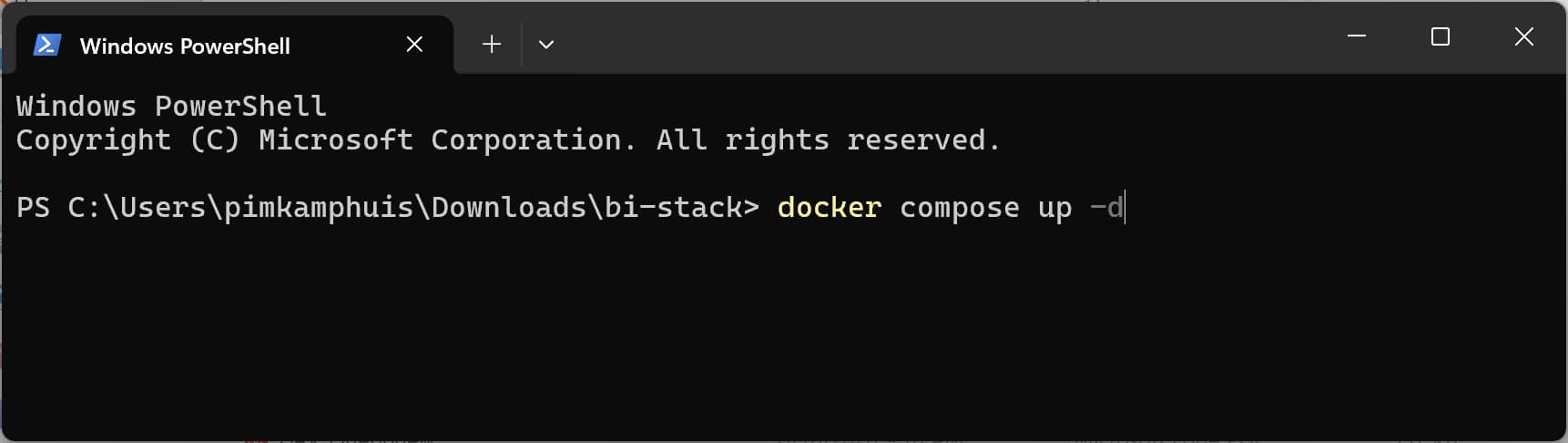
This will download the necessary Docker images and start the containers for Postgres, Metabase and n8n. This may take a few minutes, depending on your internet connection and system performance.
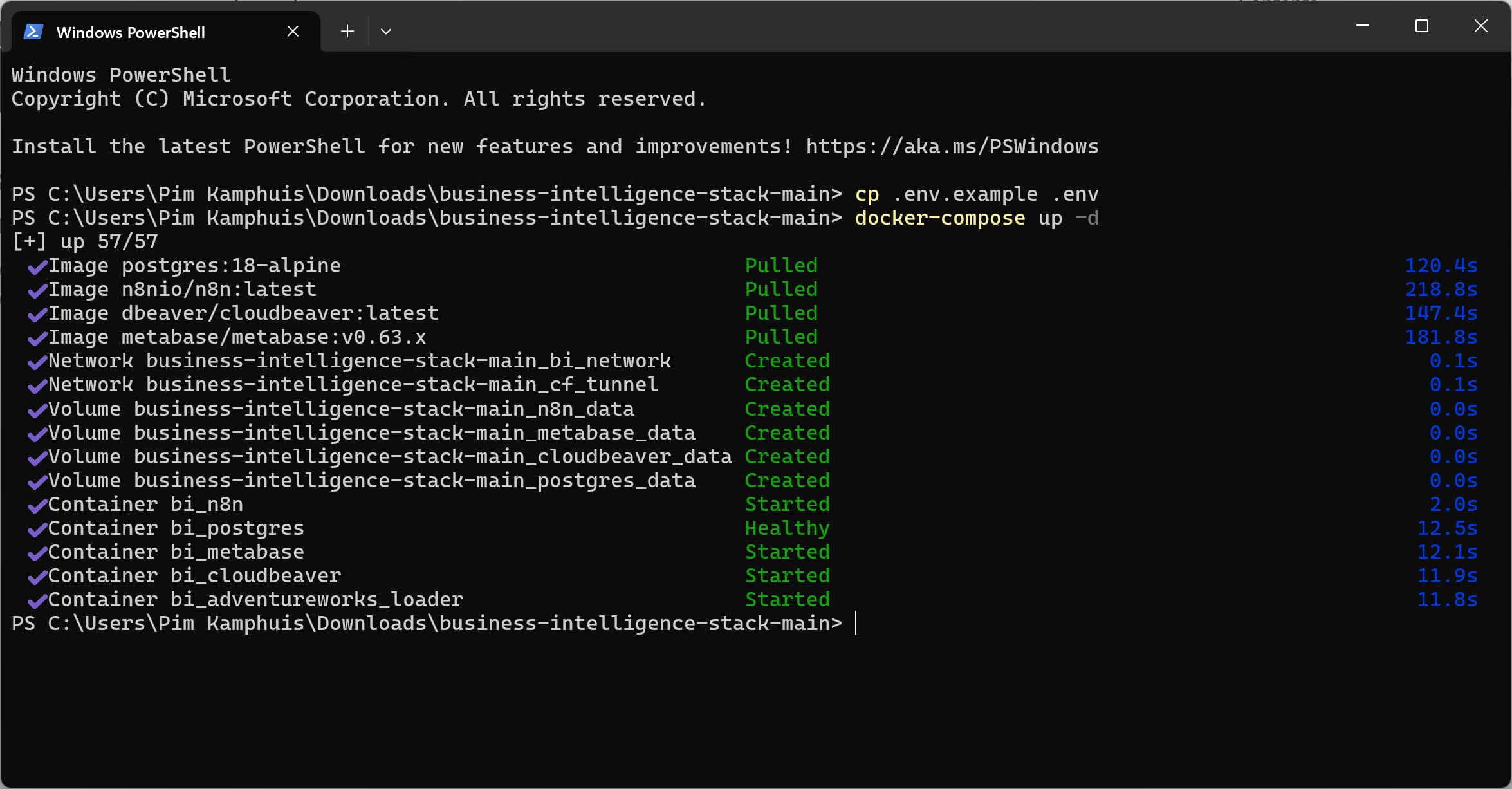
Do not forget to shut down your stack after class is finished. See instructions in section 10 for details.
You can now explore the stack by open the Docker Desktop dashboard and checking the containers that are running. You should see the following containers:
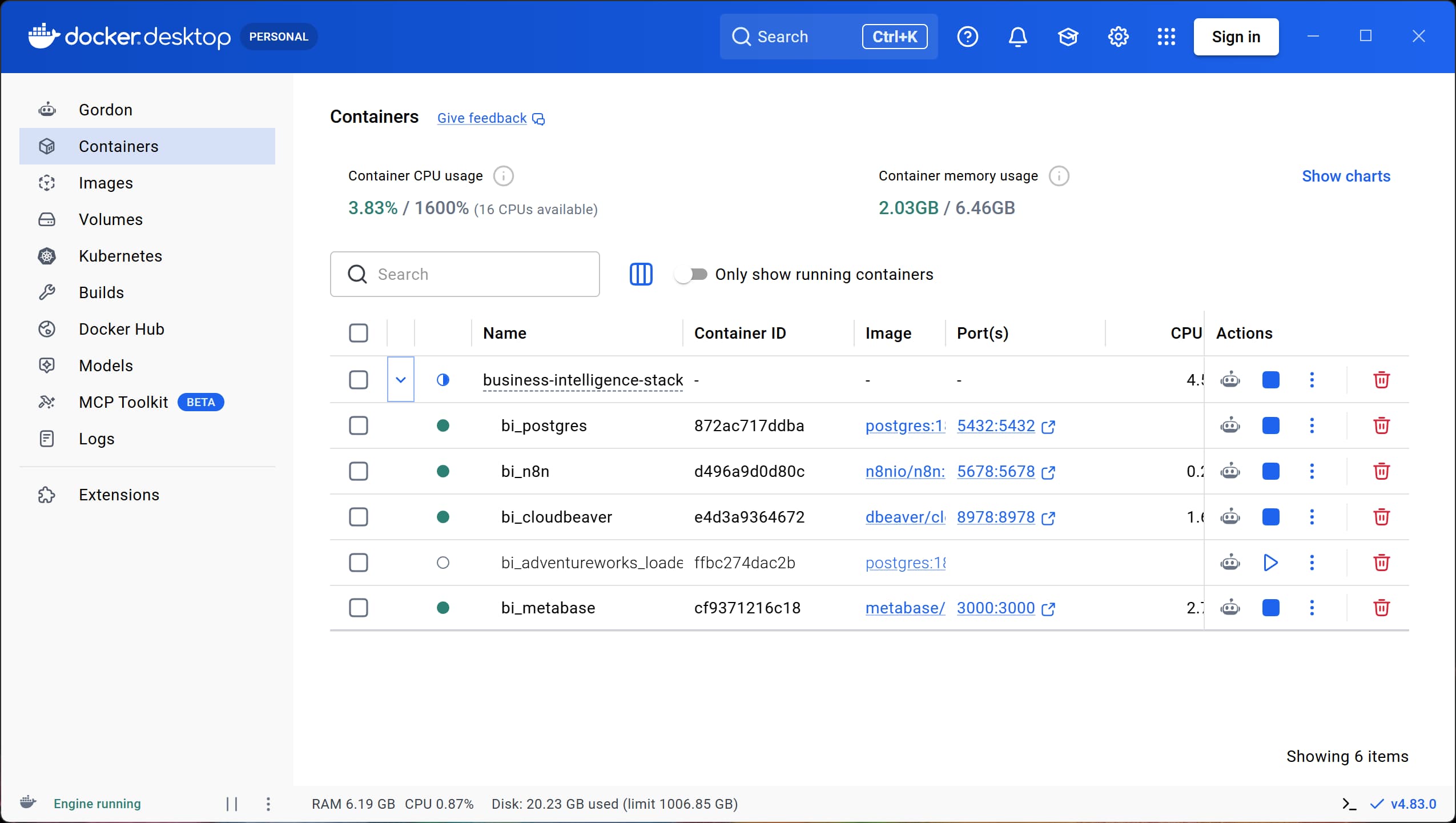
The applications in the stack can be accessed through the following URLs:
You may see containers called
bi_metabase_setup,bi_saas_loaderandbi_adventureworks_loaderlisted and not running. These are one-time containers that were used to load the AdventureWorks database into the Postgres container and set-up Metabase for your use. You can ignore it for now.
You can see the postgres database server is already added. We still need to add the database credentials to connect to the database. We can use the same username and password from the lecture slides.
Check the box Don't ask again during the session and click Login
I recommend to set the
Connection viewtoSimple. You can do this by right-clicking on the Data Warehouse (dwh_db) server and selectingConnection view->Simple.
SalesOrderHeader and SalesOrderDetail table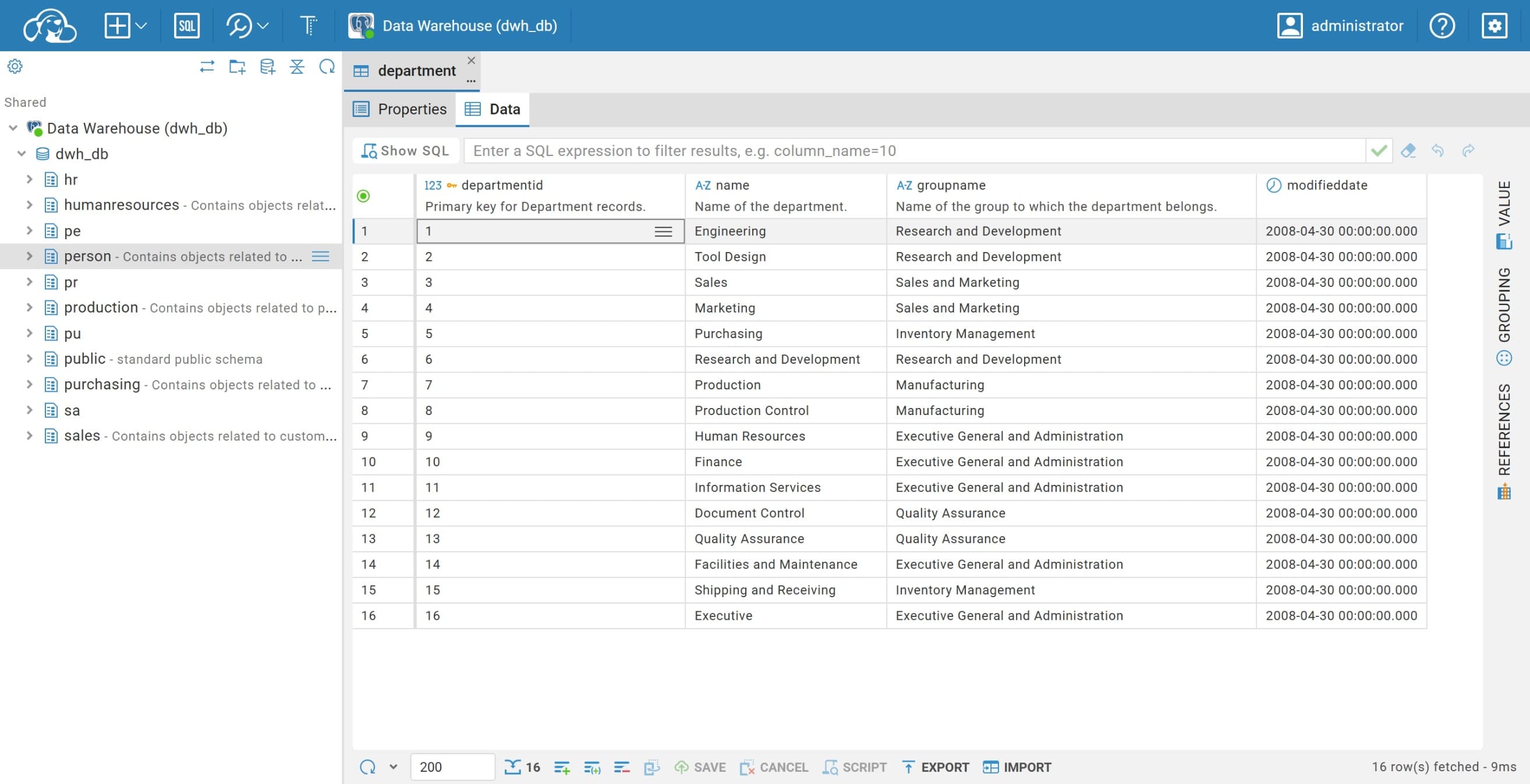
Don’t close the Cloudbeaver tab yet, we will use it later to explore the database and its tables. Next, we will add the database to Metabase so we can create queries and dashboards.
Let’s have a look at how to explore the database from another perspective using Metabase.
You may be greeted with some suggestions for data exploration. For example, you can find some quick insights about Vsalesperson
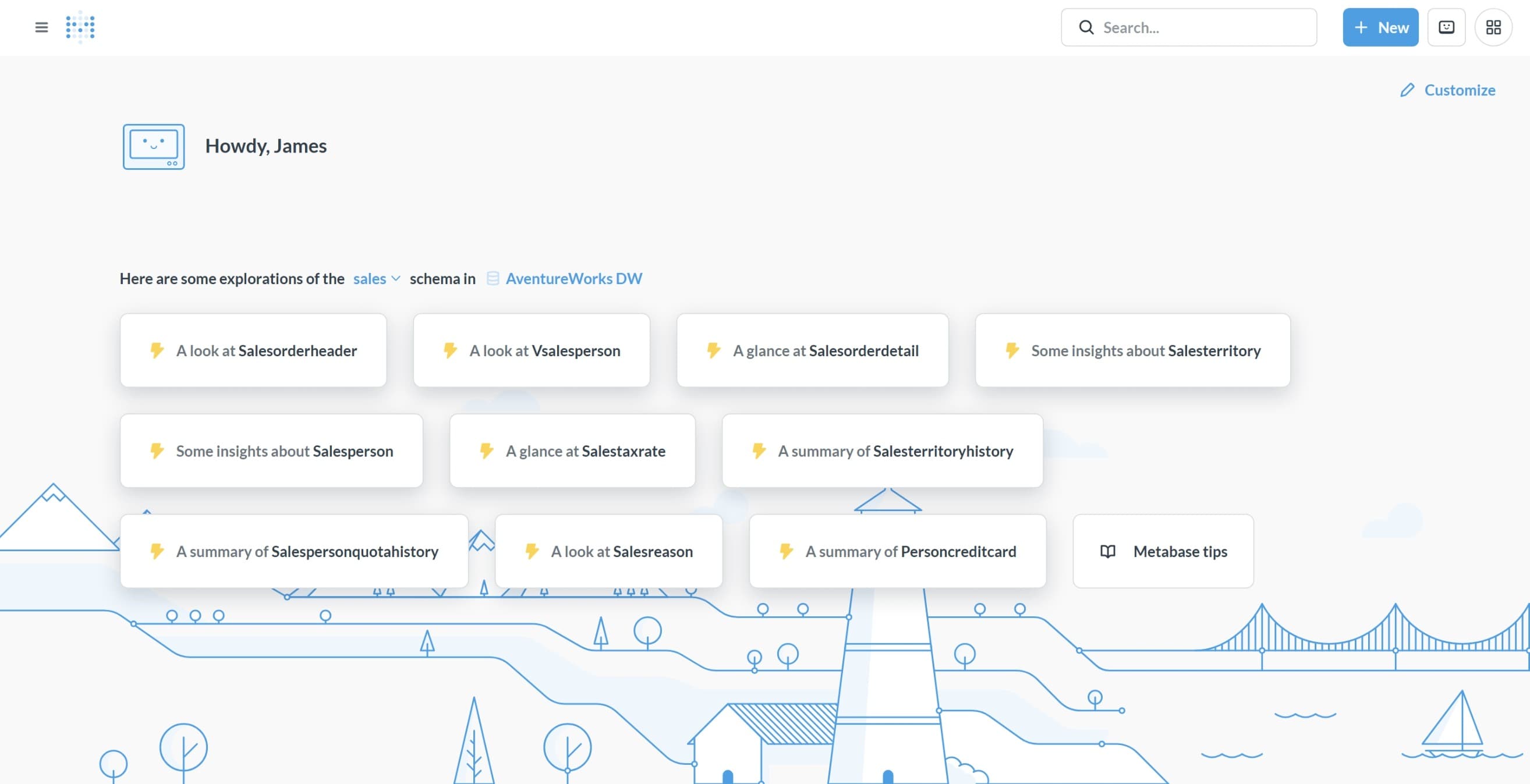
You can also explore the database structure in the Data Studio:
Data studio
Tables to explore the database structure in MetabaseLet’s make a simple query to answer the business question: Which products did we sell the most?
+ New
Question.Data Warehouse (dwh_db) database and then select the Sales.SalesOrderDetail table.Visualize
Let’s make a simple join to see which products are sold the most (in volume)
Editor in the top right corner.Summarize buttonPick function or metric select Sum of ...
Orderqty as the column to sum.Pick a column to group by select Productid
Visualize to see the summarized data.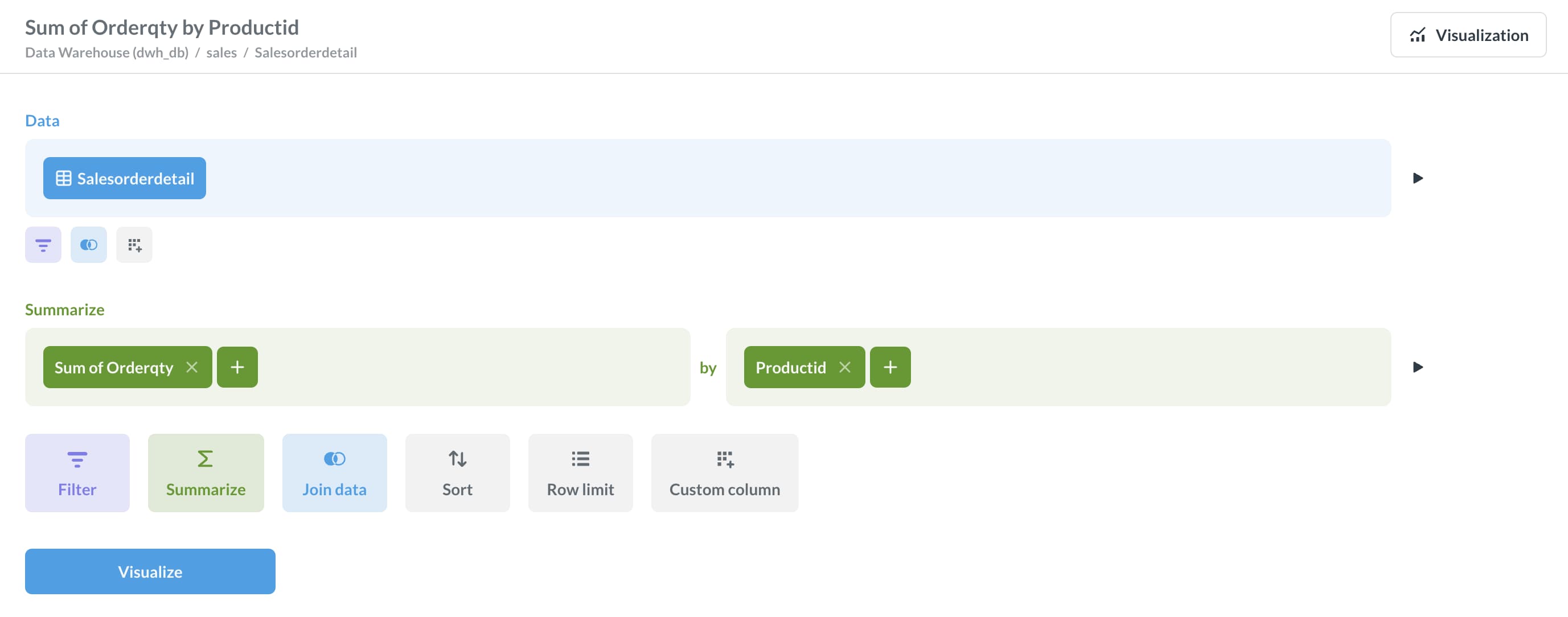
Cool, but which products are this exactly? We only see the ProductID at the moment. Let’s join the Production.Product table to get the product names.
Editor in the top right corner.Click the blue Join data button in the top menu of the question editor.

Production.Product table to join with.Productid column from both tables to join them.Summarize by section, add Product.Name
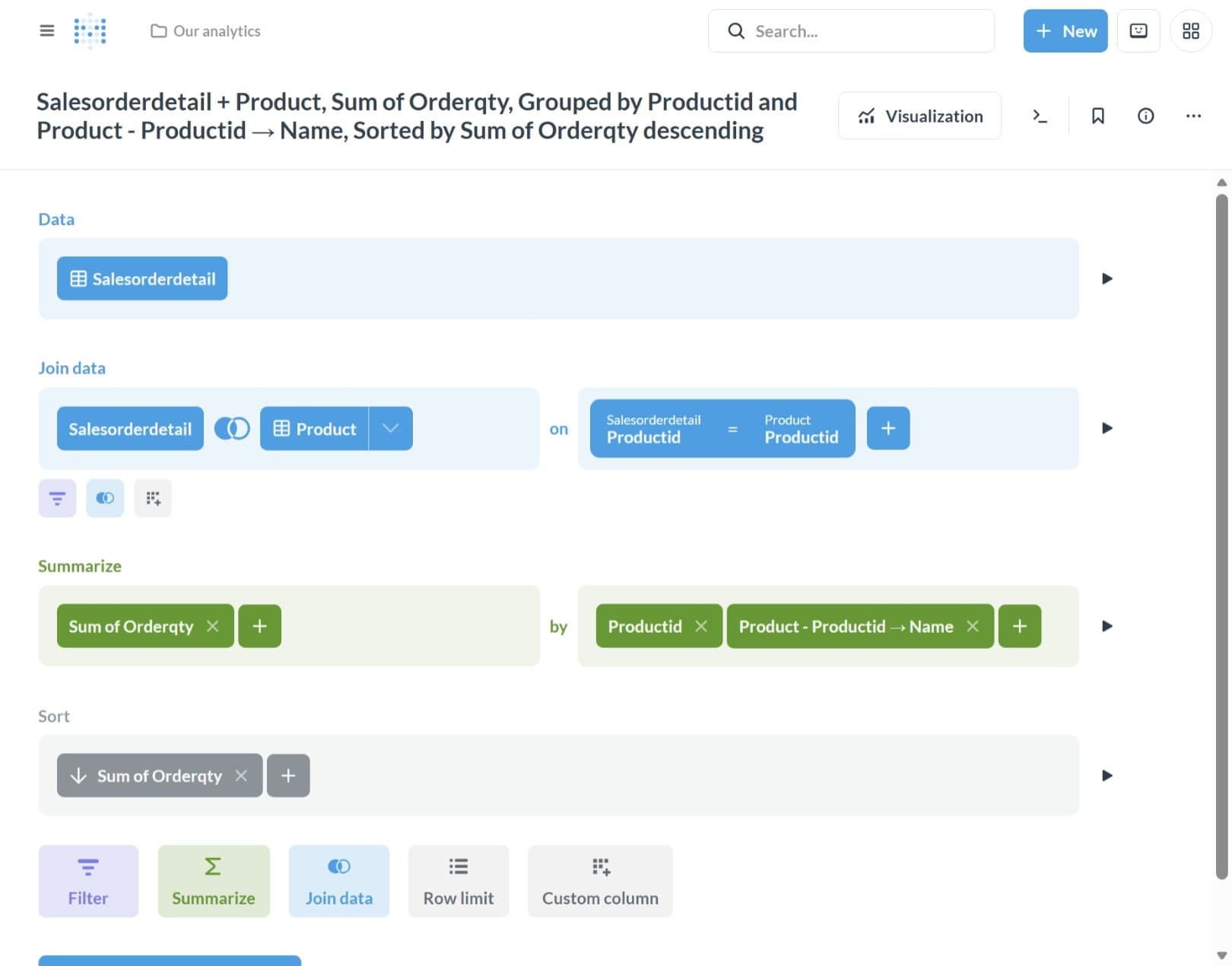
Click the Visualize button.You can now see the product names and the total quantity sold for each product.
Only if time allows
Let’s prepare this question to be added to a dashboard.
Editor in the top right corner.Sort button and sort the results by Sum of Orderqty in descending order (arrow down)Row limit button and set the limit to 10 rowsVisualize to see the top 10 products sold.Save button to save the question for future referenceTop 10 products sold
Top 10 products sold by quantity
Save
To add this question to a dashboard, click the Add to dashboard button in the top right corner of the question editor. You can create a new dashboard or add it to an existing one.
We just spent 30 minutes without AI. Now let’s add a little AI into the mix.
Metabase has a built-in AI feature called Metabot that allows you to ask questions in natural language and get answers in the form of charts and tables. To use this feature, we need to add an API key to Metabase.
Before class, you should have received an API key for OpenRouter. If you haven’t received it yet, please let me know.
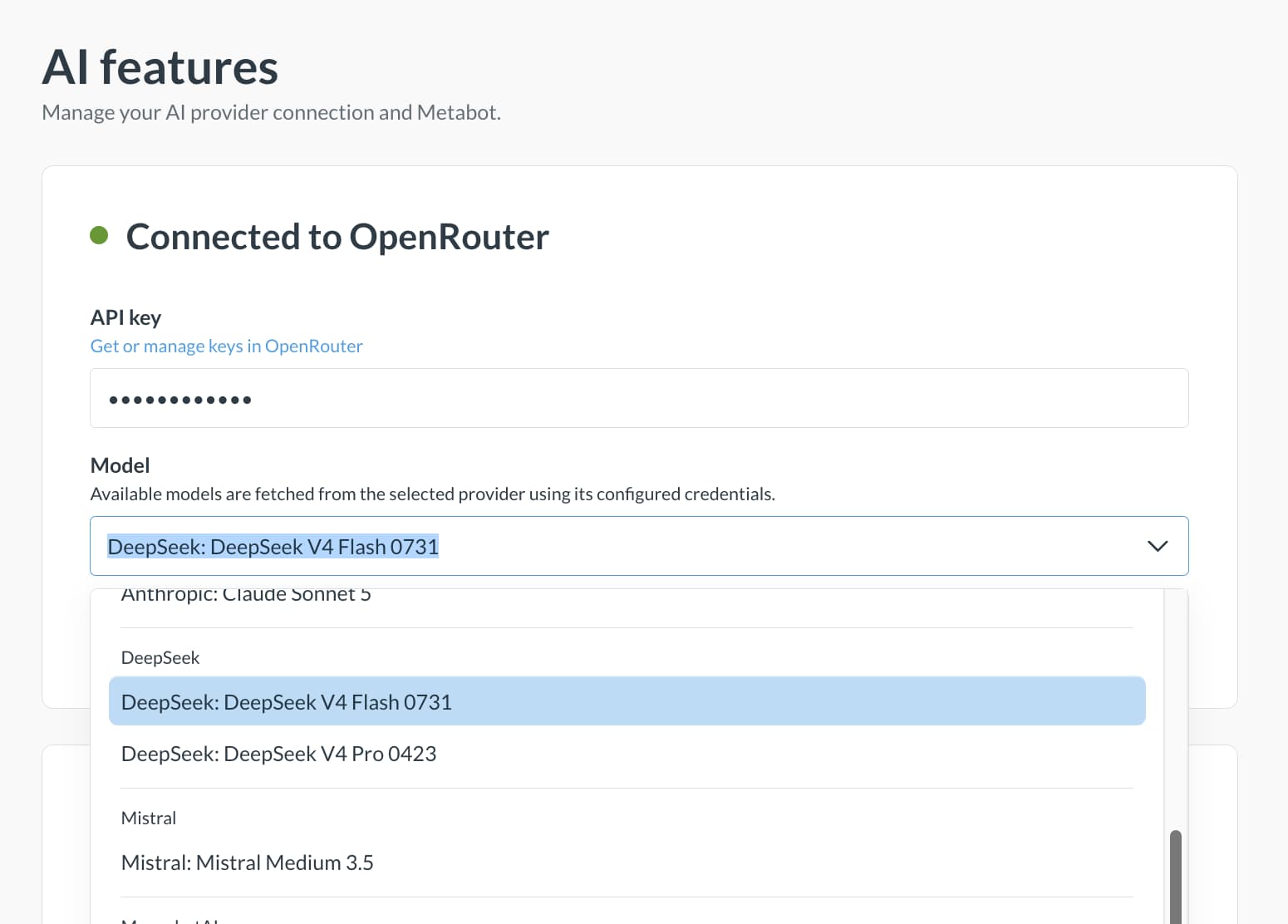
Admin.AI (Shortcut)Connect to an AI provider section, select OpenRouter
Connect
If your key is valid, Metabase will show a green indicator and Connected to OpenRouter message. In the same section, make sure to change the Model
For today’s session let’s go with DeepSeek: DeepSeek V4 Flash 0731.
At the moment of writing, Deepseek v4 Pro is even cheaper on OpenRouter than V4 Flash. You may check here and decide which model to use based on your needs.
After you added the API key, you can go back to the Metabase home page:
Main app
Since we are not very familiar with the data, let’s ask Metabot to give us some insights.
In the top right, click + New and select AI Exploration. On the question What are you looking to learn, write:
1

I want to learn more about the data in our Database Warehouse. Can you describe the data and give me some insights?
Let’s read the answer and see what Metabot has to say about the data. Click on the title of one of the linked tables, and ask follow-up questions to get more insights.
Example questions you can ask Metabot:
Return to the home page in Metabase by clicking on the Metabase logo in the upper left corner.
What is our total revenue?
Discuss the answer provided by Metabot. Did you all get the same result?
Let’s define the metric Revenue first.
To add the Revenue metric in Metabase:
Metrics under data in the navigation bar.Create metric.Sales.Salesorderheader table (you can type to search for salesorderheader)Formula select Custom Expression
Sum([Subtotal])
Update
Press the play button to see the result. If this works correctly, let’s save the metric to our Metabase metrics.
Save to save the metricRevenue
Total revenue: order subtotal excluding tax and freight
Explore the Metrics session
What is our revenue? and maybe a follow-up like What was our revenue per month?
Assume that the managers in our board would like to be presented with official revenue figures, which account for an expected 3% returns allowance. This is also known as the Board Revenue.
What is our board revenue?
Discuss the answer provided by Metabot. Did you all get the same result?
To add the Board Revenue metric in Metabase:
Metrics under data in the navigation bar.Create metric.Sales.Salesorderheader table (you can type to search for salesorderheader)Formula select Custom Expression
Sum([Subtotal]) * 0.97
Update
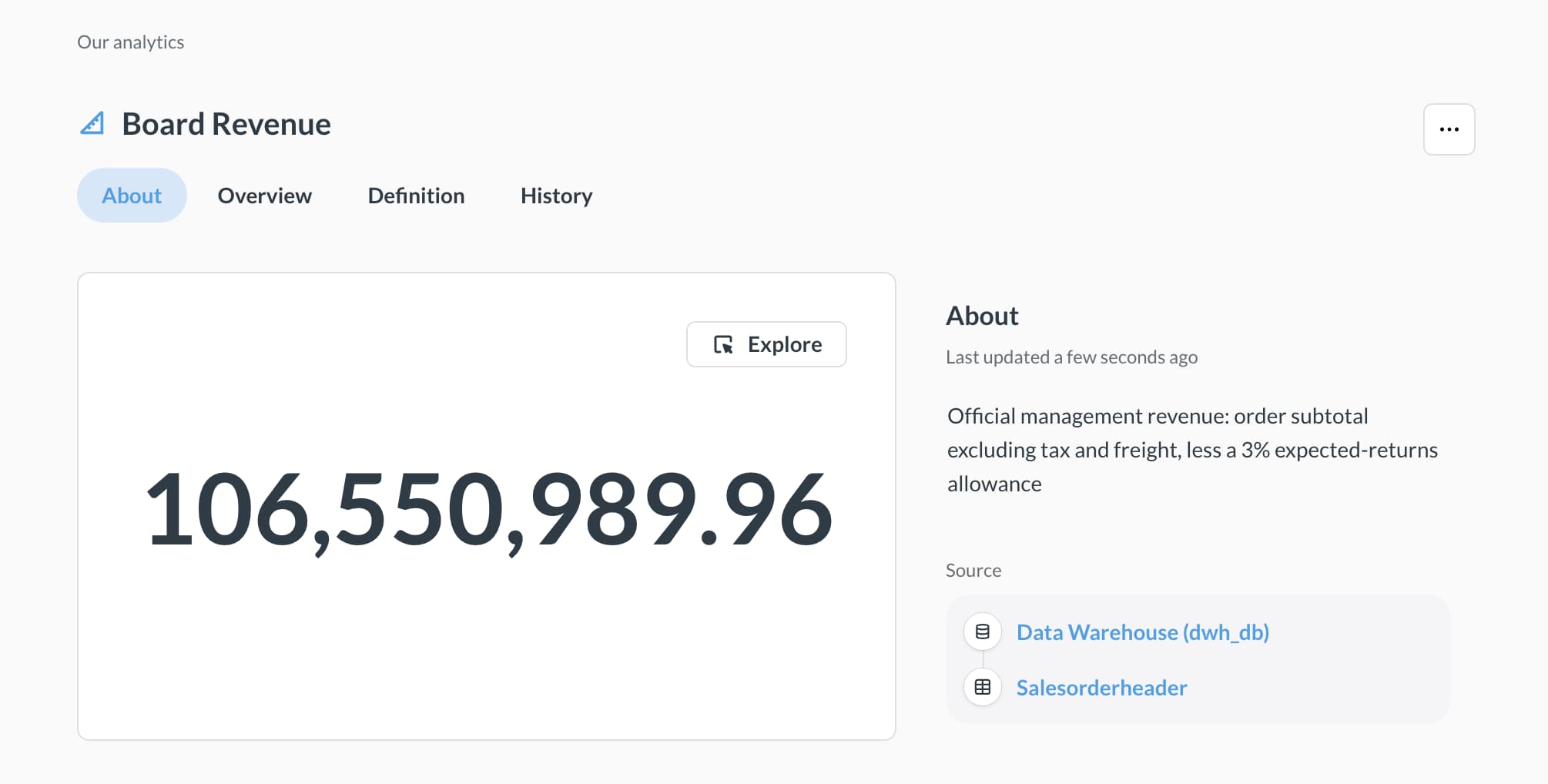
Press the play button to see the result. If this works correctly, let’s save the metric to our Metabase metrics.
Save to save the metricBoard Revenue
Official management revenue: order subtotal excluding tax and freight, less a 3% expected-returns allowance
Now you can ask Metabot questions using the Board Revenue metric. Go back to the homepage, and start a new conversation with Metabot to test your new metric. Open a new chat and ask:
What is our board revenue?What was our board revenue over the years?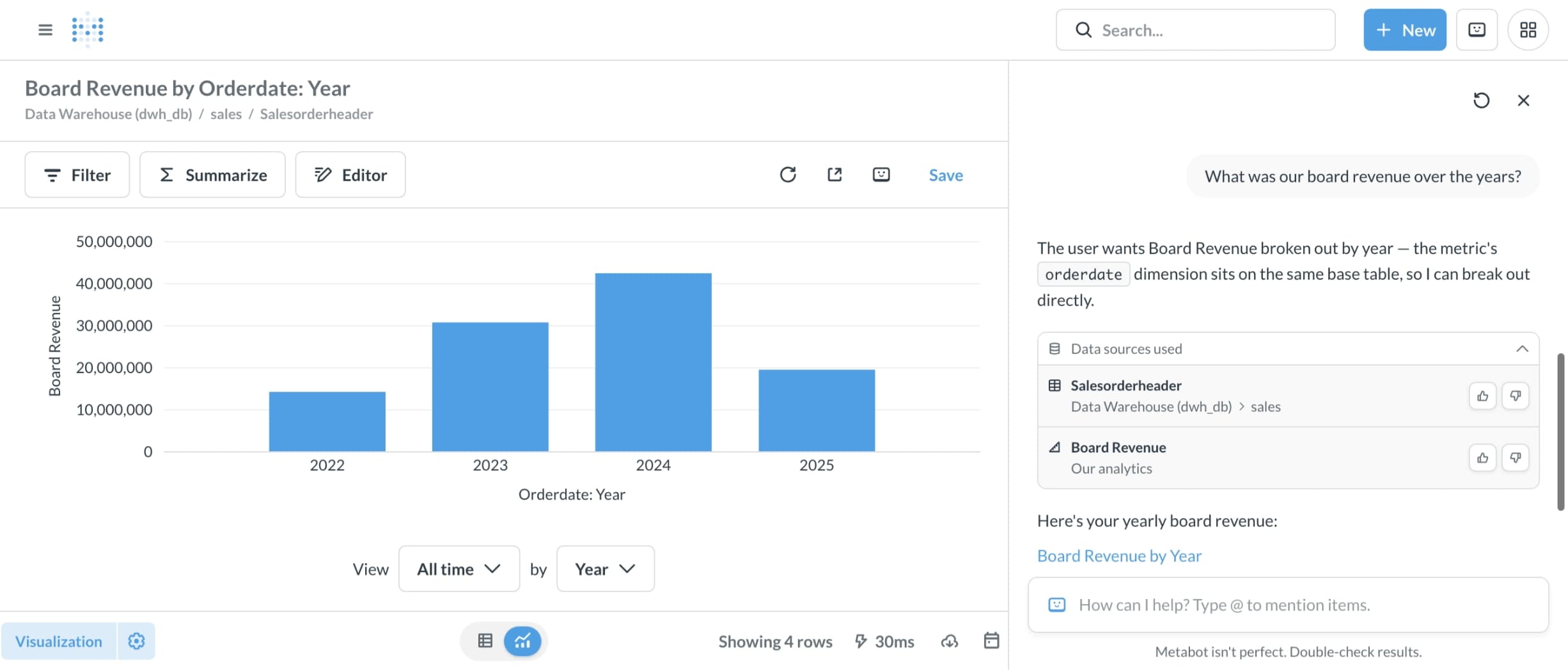 Did you all get the same result?
How many active customers do we have?
Let’s define what we mean by an active customer.
Data Studio
Glossary
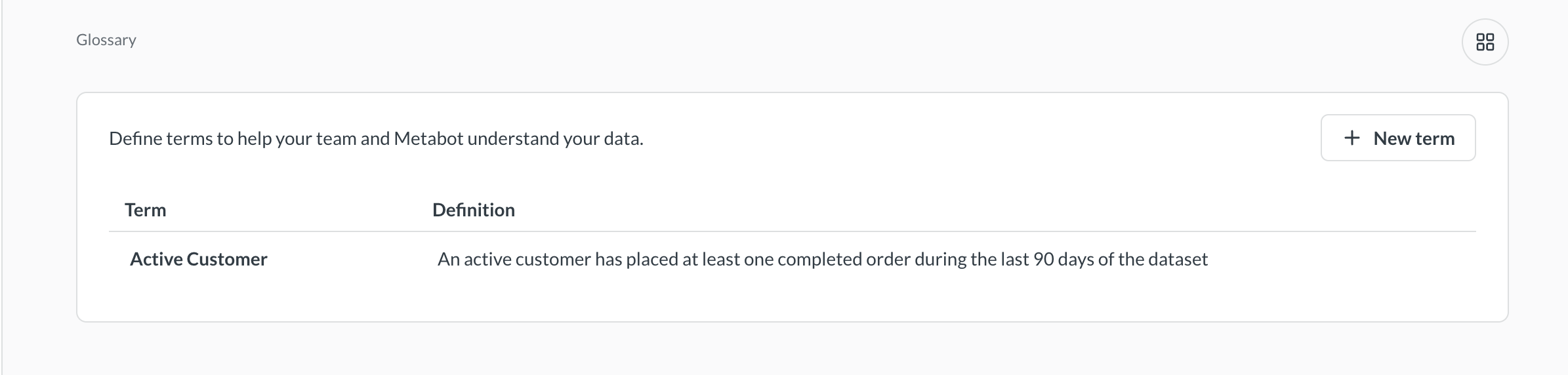
Here we can define what constitutes an active customer by creating a glossary entry for it. This helps ensure that everyone in the organization has a consistent understanding of the term.
Let’s say we run a summer promotion every year and want to track the orders associated with it. You can create a question in Metabase to filter orders based on the promotion period for further analysis.
+ New buttonAI Exploration from the dropdown menuExplore the resulting table to analyze the summer promotion orders. If you agree with the data, you can save the question for future reference.
Save to save the question for future referenceSummer Promotion Orders
Orders placed during our yearly summer promotion
Our Analytics
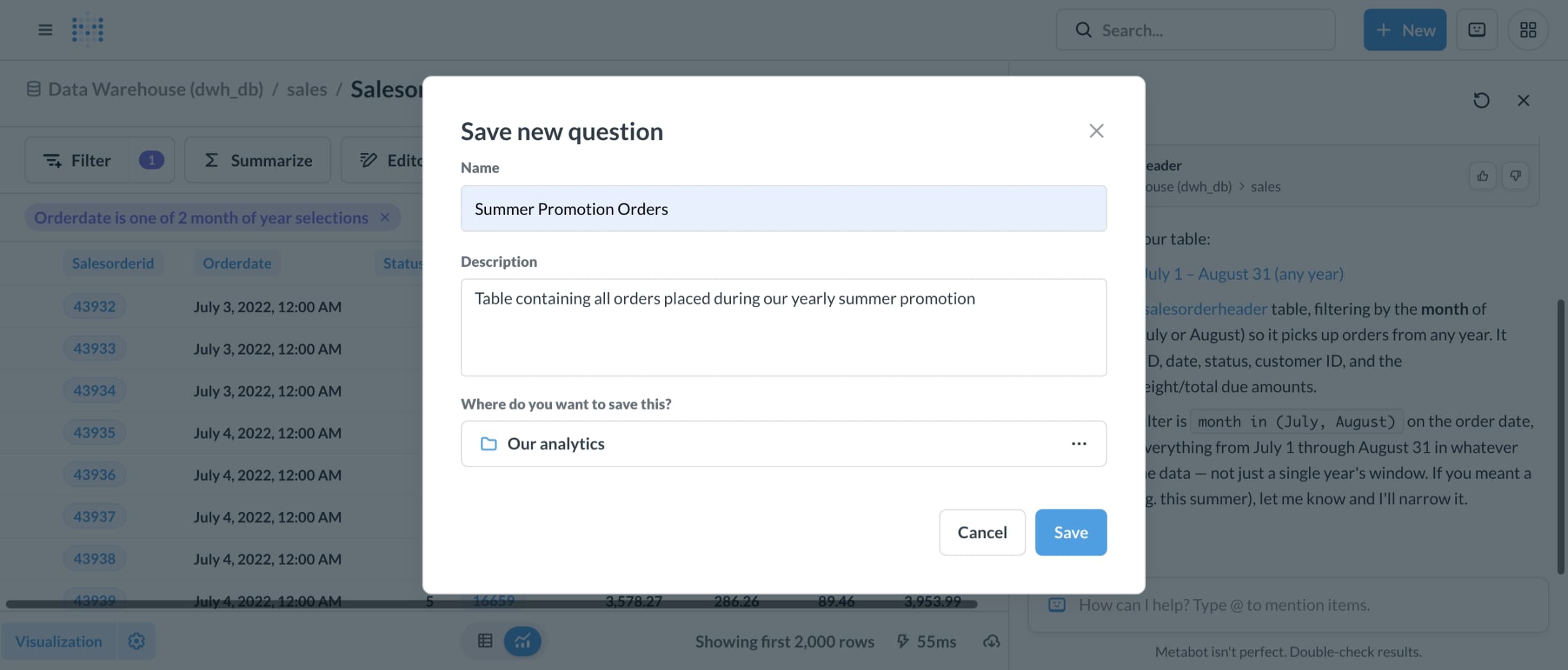
Go back to the Metabase homepage and ask Metabot:
How much revenue did we generate from summer promotion orders each year?
Allow the Metabot some time and then review the generated results.
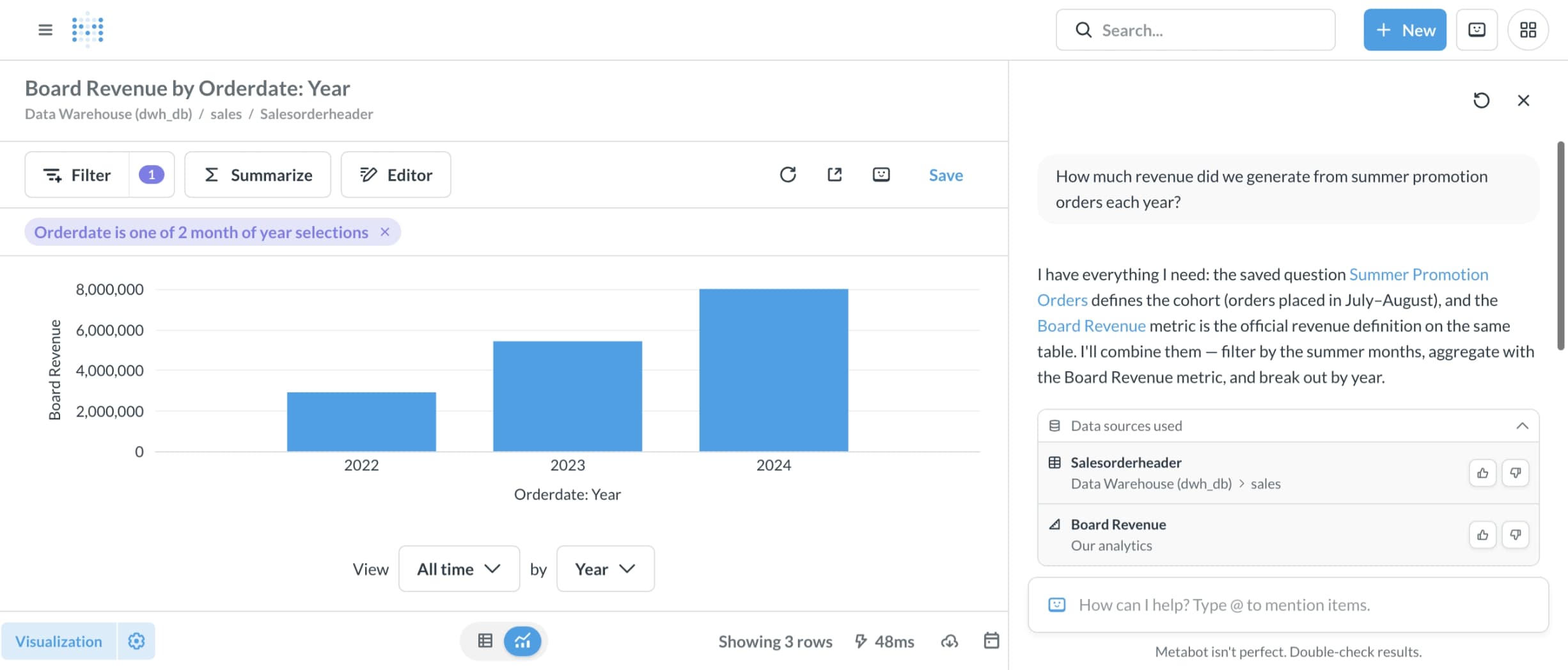
Did your Metabot also take into account the correct summer promotion period and revenue definition?
You can make your AI agent interact with your Metabase instance by using the Metabase MCP (Metabase Command Protocol). This is a feature that allows you to send commands to Metabase and get responses in natural language. You can use this feature to automate tasks, create dashboards, and get insights from your data. You can read more about it in the documentation on https://www.metabase.com/docs/latest/ai/mcp.
To find your Metabase MCP settings and URL:
Admin
AIin the top menuMCP tab and then Settings
(or just try this link)Here you will find the MCP server URL and other relevant settings needed to connect your AI coding agent. Below are two examples of how to use these settings with different AI coding agents.
To add the Metabase MCP server to Claude Code, run the following command in your terminal:
1

claude mcp add --transport http metabase http://127.0.0.1:3000/api/metabase-mcp
The MCP server should now be added to Claude Code, but cannot be used without authentication.
To authenticate the MCP server, run the following command:
1

claude mcp login metabase
Then launch Claude Code.
To add the Metabase MCP server to Codex via the terminal, run the following command:
1

codex mcp add metabase --url http://127.0.0.1:3000/api/metabase-mcp
This should add the Metabase MCP server to Codex and automatically open a window to authenticate the server.
If it doesn’t open a window automatically, you may need to authenticate the server manually through the login command:
codex mcp login metabase
Open Codex in your ChatGPT desktop app and go to
Add server and fill in the following values:
Metabase MCP
Streamable HTTP
http://127.0.0.1:3000/api/metabase-mcp
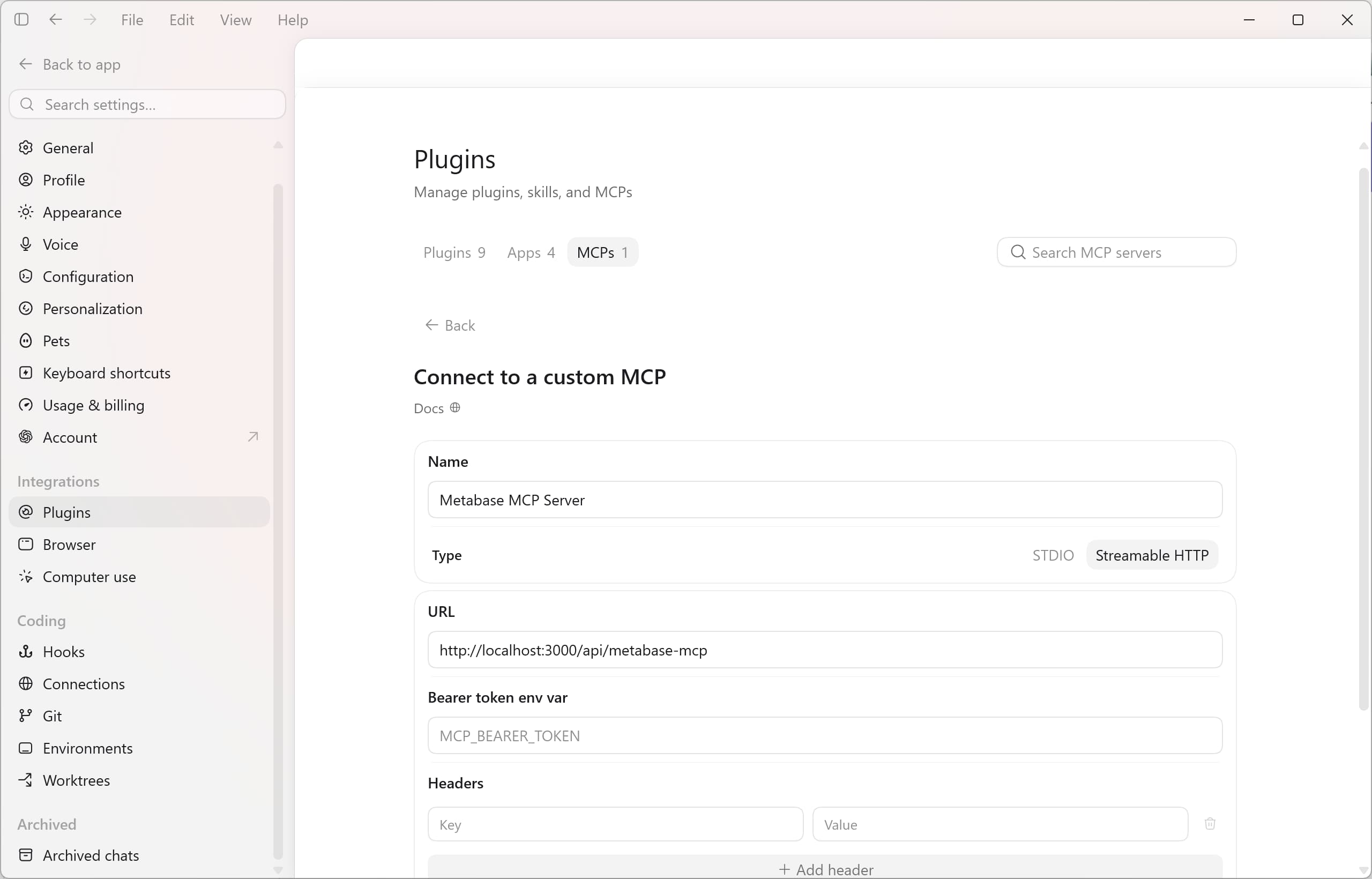
The server will show in the list and an Authenticate button will appear. Click on it to authenticate the server.
For example, you can ask your AI coding agent:
Which metrics are recorded in Metabase?How much revenue did we generate from summer promotion orders each year?For example, you can prompt your AI coding agent with:
Create a new collection for our Sales team and add a Metabase dashboard for our Sales team to monitor summer promotion orders and revenue and save
Docker Desktop and the BI stack will keep running in the background until you shut them down. Assuming that you want to stop them after finishing the workshop, you can follow the steps below.
To shut down the stack, go to the project’s folder and run the following command in your terminal:
1

docker compose down
If you’re not planning on using the stack for again, you can also remove the data by running the following command:
1

docker compose down -v
If you want to try out Claude Code together with DeepSeek Flash v4.1 using your class credit, you can follow the instructions below:
bam5121-bi-kit, for example in your documents folderbam5121-bi-kit folder and create the .claude/settings.local.json filePaste the following content into the .claude/settings.local.json file:
1
2
3
4
5
6
7
8
9
10
11
12
13
14
15
16

{
"env": {
  "OPENROUTER_API_KEY": "YOUR_OPENROUTER_API_KEY",
  "ANTHROPIC_BASE_URL": "https://openrouter.ai/api",
  "ANTHROPIC_AUTH_TOKEN": "YOUR_OPENROUTER_API_KEY",
  "ANTHROPIC_API_KEY": "",
  "ANTHROPIC_MODEL": "deepseek/deepseek-v4.1-flash",
  "ANTHROPIC_DEFAULT_SONNET_MODEL": "deepseek/deepseek-v4.1-flash",
  "ANTHROPIC_DEFAULT_OPUS_MODEL": "deepseek/deepseek-v4.1-flash",
  "ANTHROPIC_DEFAULT_HAIKU_MODEL": "deepseek/deepseek-v4.1-flash",
  "ANTHROPIC_DEFAULT_FABLE_MODEL": "deepseek/deepseek-v4.1-flash",
  "CLAUDE_CODE_MAX_CONTEXT_TOKENS": "384000",
  "CLAUDE_CODE_AUTO_COMPACT_WINDOW": "384000"
},
"skipDangerousModePermissionPrompt": true
}
YOUR_OPENROUTER_API_KEY to your actual OpenRouter API key twiceStart Claude Code from your bam5121-bi-kit folder
The code also includes the configuration for your metabase MCP server.
And if this is your first time using Claude code and want to skip the initial onboarding, add
"hasCompletedOnboarding": trueto your~/.claude.jsonfile.